Tutorials Videos Menu
Website Pro NEW

Excel Tutorial

Excel HOME Excel Introduction Excel Get Started Excel Overview Excel Syntax Excel Ranges Excel Fill Excel Move Cells Excel Add Cells Excel Delete Cells Excel Undo Redo Excel Formulas Excel Relative Reference Excel Absolute Reference Excel Arithmetic Operators Excel Parentheses Excel Functions

Excel Formatting

Excel Formatting Excel Format Painter Excel Format Colors Excel Format Fonts Excel Format Borders Excel Format Numbers Excel Format Grids Excel Format Settings

Excel Data Analysis

Excel Sort Excel Filter Excel Tables Excel Conditional Format Excel Highlight Cell Rules Excel Top Bottom Rules Excel Data Bars Excel Color Scales Excel Icon Sets Excel Manage Rules (CF) Excel Charts Excel Charts Customization

Excel Case

Case: Poke Mart Case: Poke Mart, Styling

Excel Functions

AND AVERAGE AVERAGEIF AVERAGEIFS COUNT COUNTA COUNTBLANK COUNTIF COUNTIFS IF IFS MAX MEDIAN MIN MODE OR STDEV.P STDEV.S SUM SUMIF SUMIFS VLOOKUP XOR

Excel Exercises

Excel Certificate


Excel Division Operator


Division Operator

Division uses the / symbol in Excel.

How to do division cells:

  1. Select a cell and type (=)
  2. Select a cell
  3. Type (/)
  4. Select another cell
  5. Hit enter

You can add more cells to the formula by typing (/) between the cells.

Let's have a look at some examples.


Dividing Manual Entries

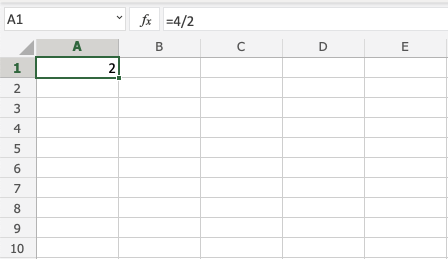
Let's start with adding in a formula. Start with a clean sheet.

Step by step:

  1. Type A1(=)
  2. Type 4/2
  3. Hit enter


Dividing Two Cells

Let's add some numbers to work with. Type the following values:

Step by step:

  1. Type A3(=)
  2. Select A1
  3. Type (/)
  4. Select A2
  5. Hit enter